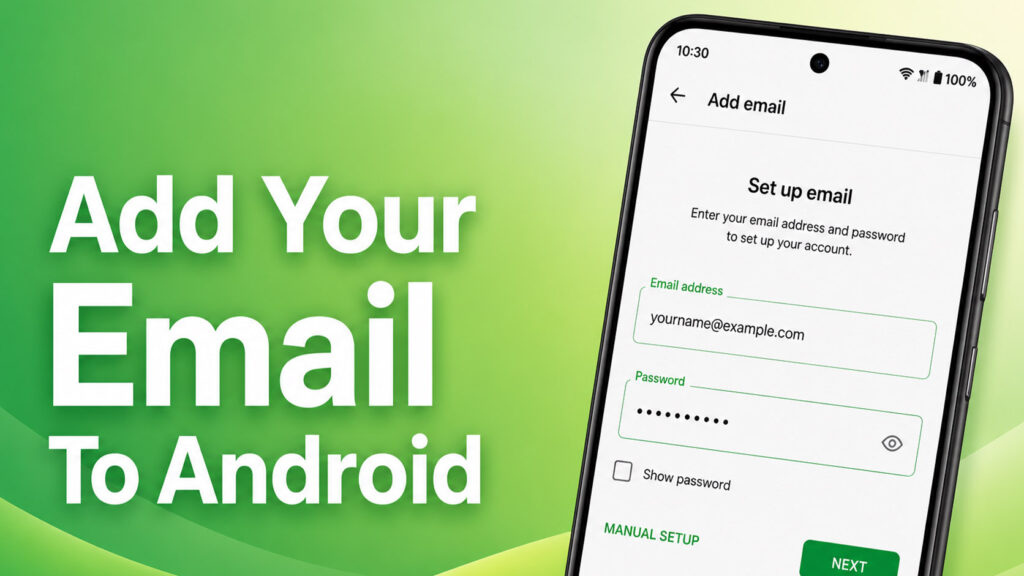
Add Your Email to Android.
1
Open the Gmail app on your Android phone
Open the Gmail app on your Android phone
2
Tap your profile icon in the top right corner
Tap your profile icon in the top right corner
3
Tap Add Another Account
Tap Add Another Account
4
Choose Other
Choose Other
5
Enter your full email address then tap Next
Enter your full email address then tap Next
6
Select Personal (IMAP)
Select Personal (IMAP)
7
Enter your password then tap Next
Enter your password then tap Next
8
Enter the incoming server settings then tap Next
Enter the incoming server settings then tap Next
9
Wait while the server settings are verified
Wait while the server settings are verified
10
Enter the outgoing server settings then tap Next
Enter the outgoing server settings then tap Next
11
Adjust the sync settings if needed then tap Next
Adjust the sync settings if needed then tap Next
12
Give the account a name if you’d like then tap Next
Give the account a name if you’d like then tap Next
✓
Your email is now successfully set up and ready to use on your Android phone
Your email is now successfully set up and ready to use on your Android phone