How to Access Webmail & Configure Email
Quick Video Overview: Watch this 2-minute guide to get started
📧 1. How to Access Your Email Online (Webmail)
This is the easiest way to check your email from any computer with a web browser – no software needed.
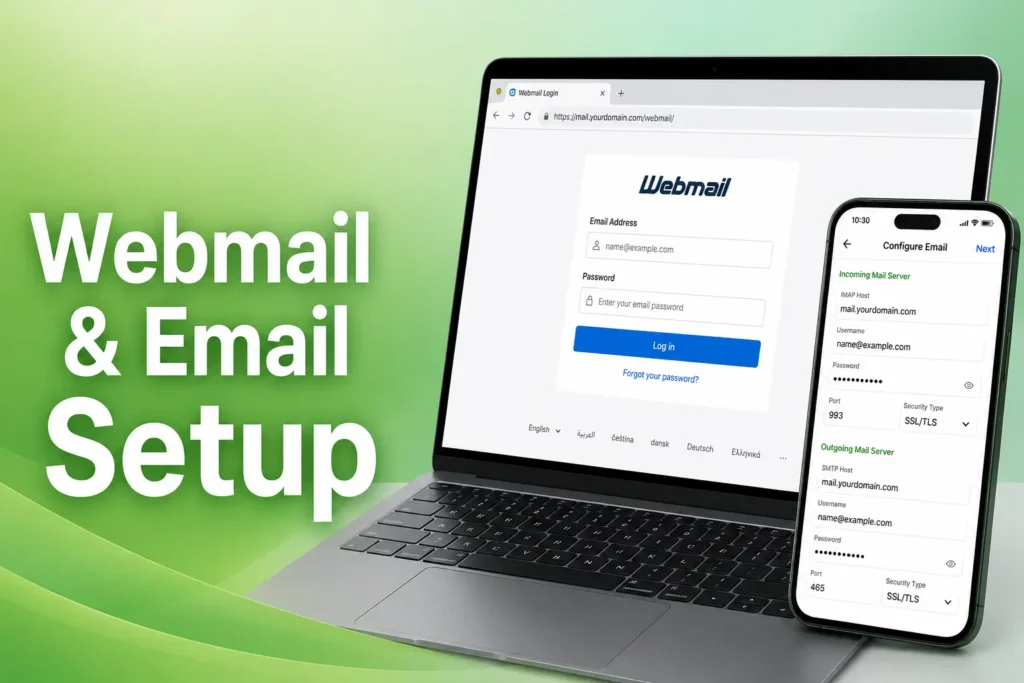
https://mail.tipihost.com/
https://mail.tipihost.com/
Email: Your full email address (e.g., [email protected])
Password: The password sent to you
Email: Your full email address (e.g., [email protected])
Password: The password created for this email address. This was sent to the primary contact email linked to your TipiHost account (the same inbox where you receive your invoices). If you don't have it, check your welcome email or contact support.
💡 Tip: Bookmark https://mail.tipihost.com/ for quick access!
📱 2. How to Setup Email on Your Device
Use these exact settings for your phone, tablet, or email program:
Server: secure.emailsrvr.com
Port: 993
Security: SSL/TLS (Required)
Server: secure.emailsrvr.com
Port: 465
Security: SSL/TLS (Required)
🔐 For ALL Settings:
- Username: Your FULL email address
- Password: Your email password
- Authentication: Required (turn ON)
🎥 Video Setup Tutorials
Follow these video guides for your specific device:
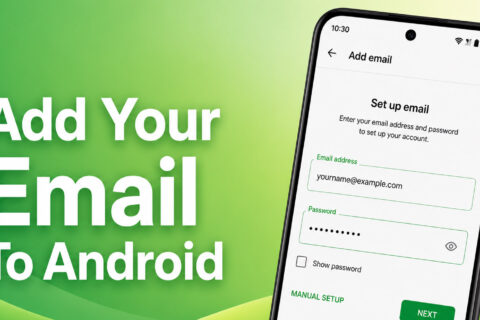
Android Setup Guide
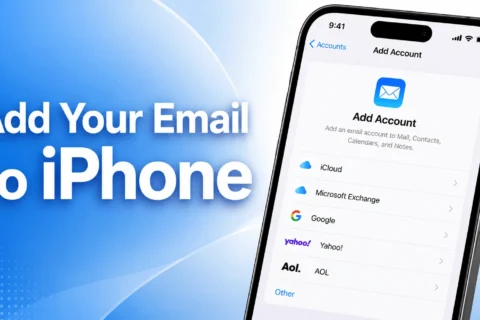
iPhone (iOS) Setup Guide
Outlook & Computer Setup
🔐 3. Password Management
Change Password (English)
Cambiar Contraseña (Español)
⚠️ Important Reminders
❓ Need Help?
Contact support if you encounter setup errors.